Everything that's due, and where to start.
Itinerary turns your course outlines into one calm list. It shows you the one thing to start with, and it's kind when you fall behind.
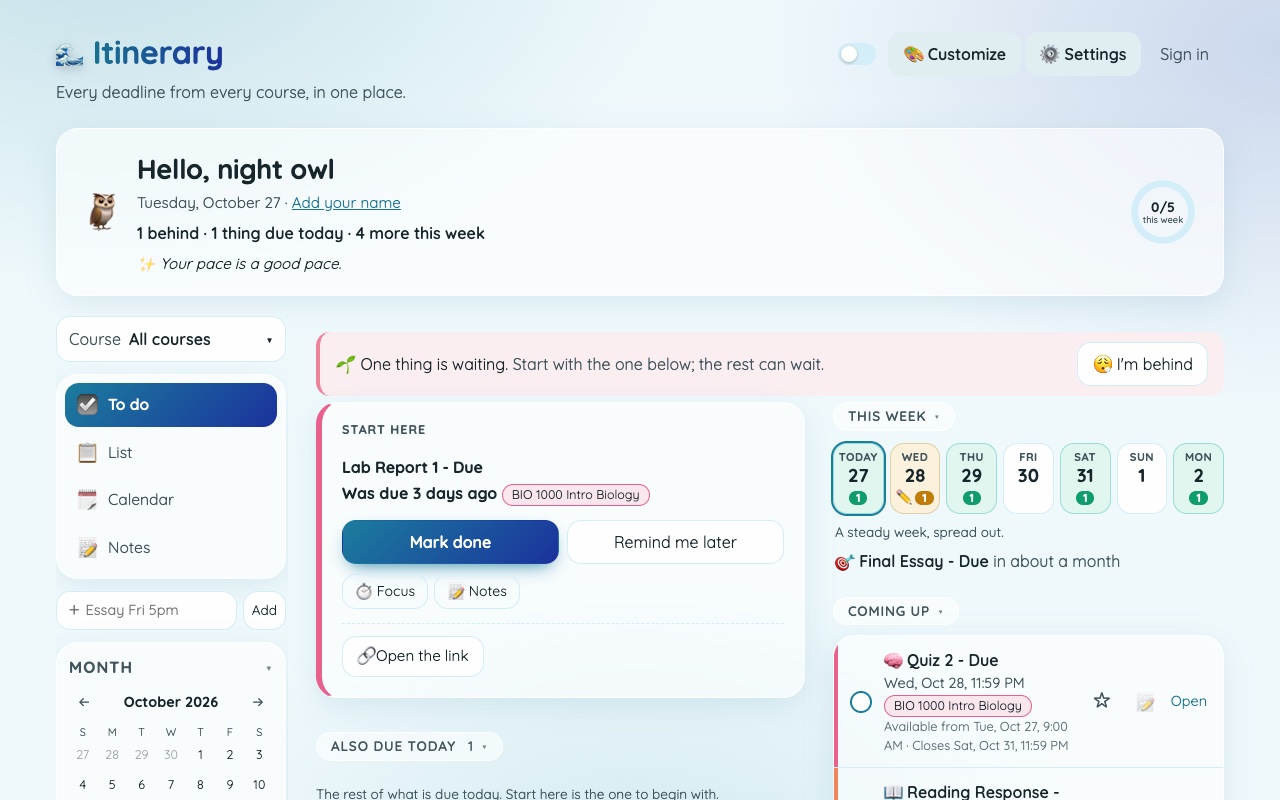
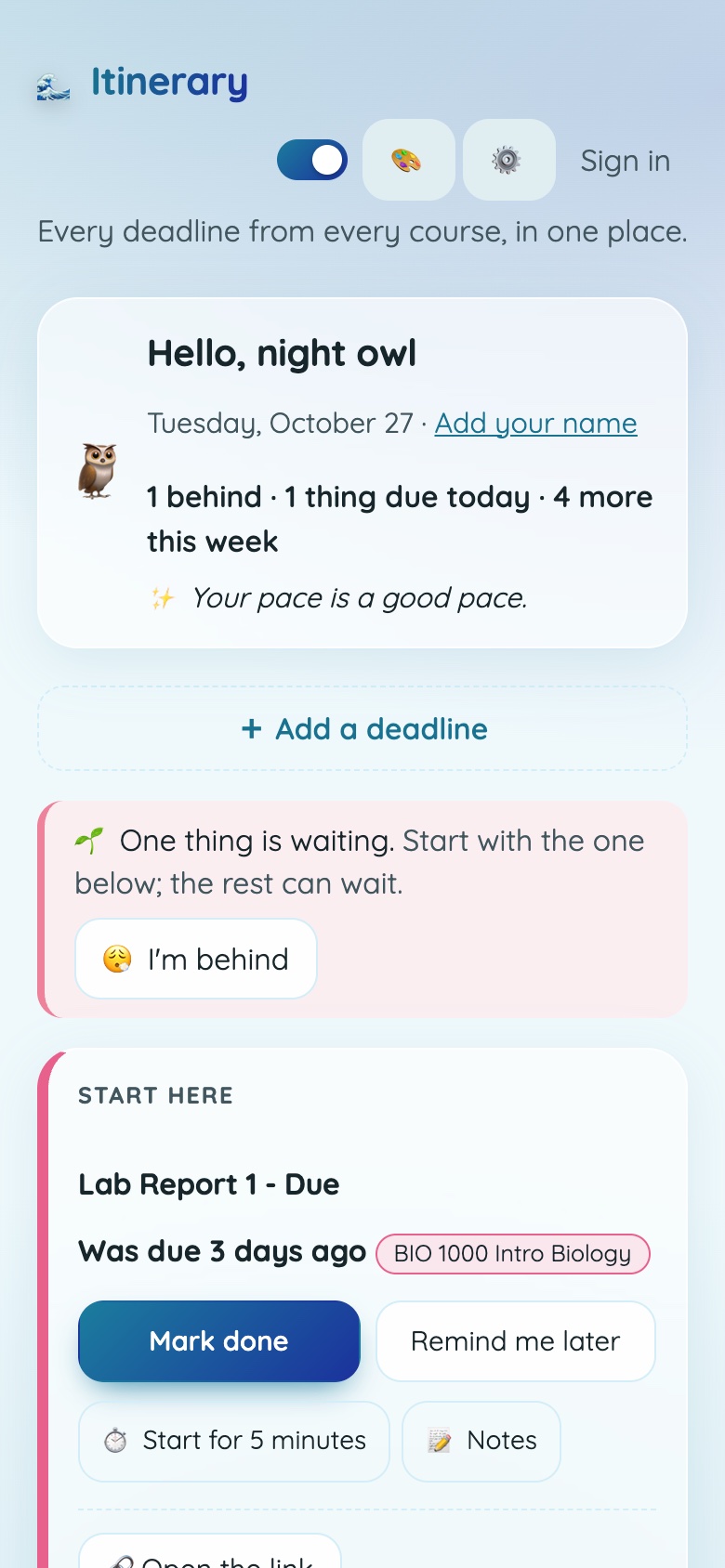
These are real screens from the app's demo, with made-up courses and dates.
From a pile of course outlines to your first week.
The first year of university comes with a lot of dates. Itinerary is for students who feel buried by them.
Drop in your course outlines
PDF, Word or text, all at once. They're read on your device.
Check what it found
Dates, readings, weekly classes and topics. Keep or remove anything before it's added.
See your first week
And the one thing to start with.
Calm, on purpose.
The screens are short on purpose. Here's how it looks on a phone.
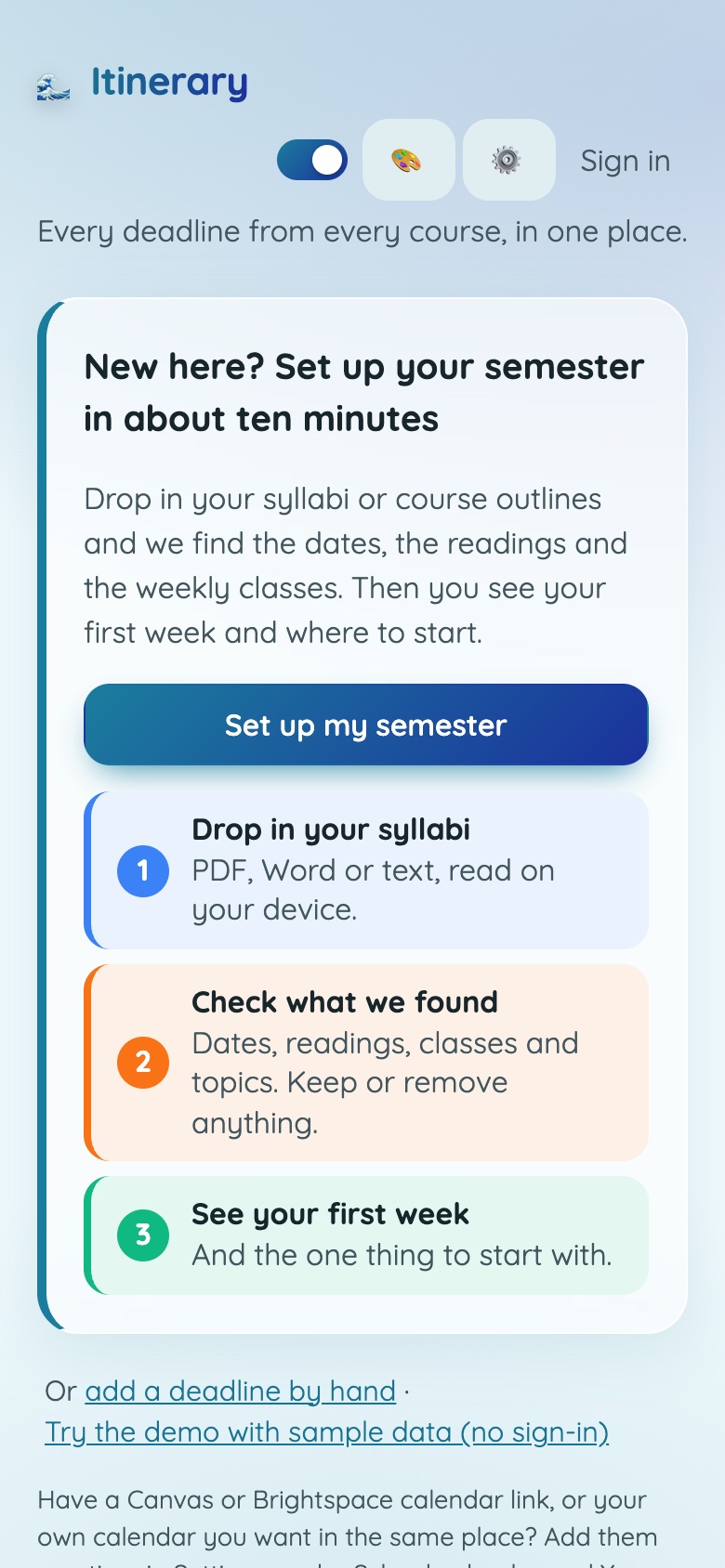
Start with your outlines
Drop them in and it finds the dates, the readings and the weekly classes.
Your day, one thing first
A Start here card shows what to do first. The rest can wait.
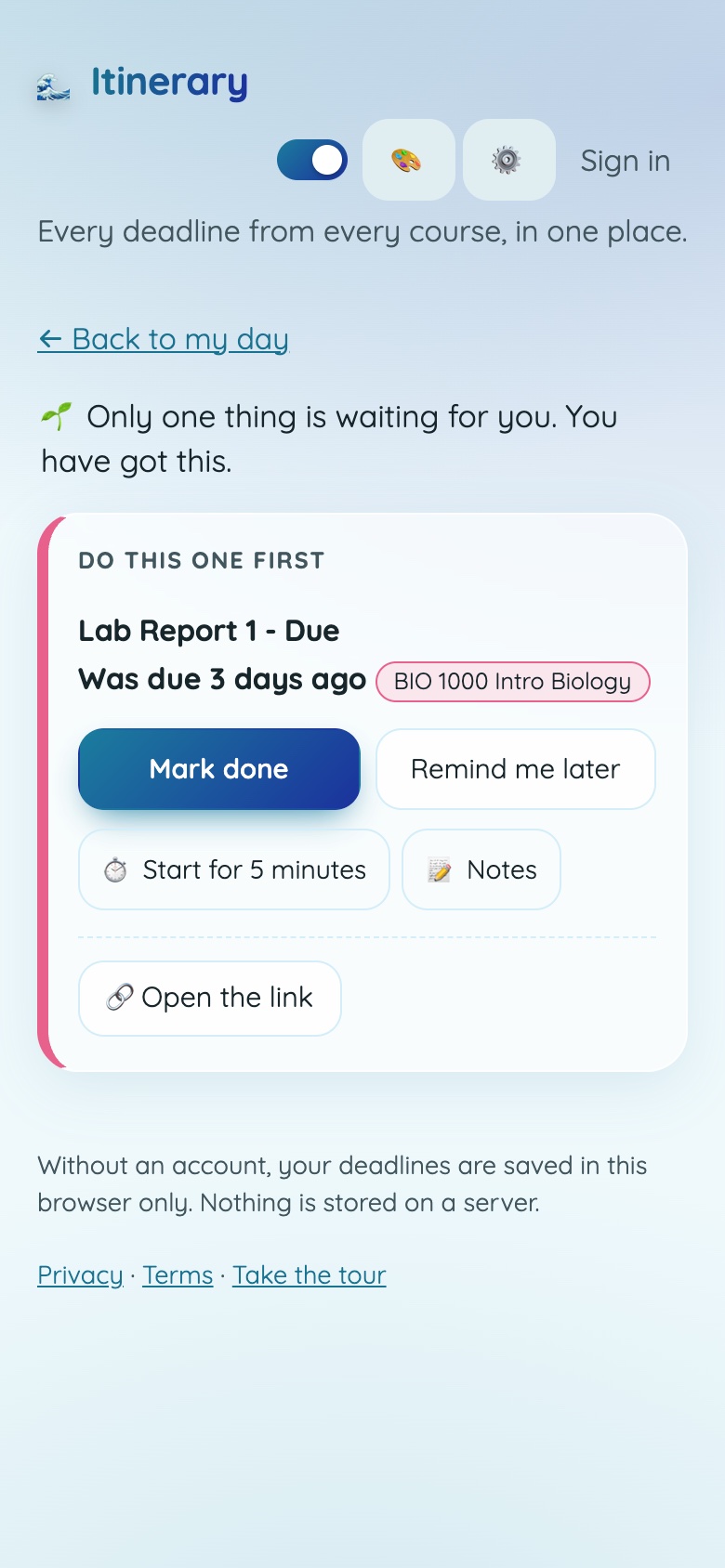
Behind? That's okay.
One kind screen with the one thing to do first. No lists of everything you missed.
Everything you need, nothing you don't.
Dates from your outlines
Assignments, tests, exams, weekly classes, labs and office hours, found for you. You check them before they're added.
Canvas, Brightspace and Google Classroom
Add your school calendar and your deadlines come across too, and it tells you when one changes.
Plan your day and your week
Pick what you'll do today, plan by the hour, or let it spread the week out for you.
A small way to begin
Start for five minutes, or use a focus timer. Getting started is the hard part.
Study plans and marks
For an exam, it works a study plan back from the date. Track your marks and see an estimate of where you stand.
Make it yours
Simple by default, with Full when you want more. Pick a look and give each course its own colour.
Your course outlines stay on your device.
They're read on your device. Nothing is uploaded, and no AI reads them. Without an account, your deadlines are saved in your browser only, and nothing is stored on a server. Your calendar link is private, and Itinerary keeps the data it collects to a minimum.
Good to know
When can I use it?
It's still being finished, so there's no date yet. This page will change when it opens.
Who is it for?
University students, especially in first and second year, when everything is new and the dates pile up. It's for students 18 and over.
Do I need an account?
No. Without one, your deadlines stay in your browser. An account is for things like reminders and keeping everything in sync.
Does it need my school password?
No. For Canvas and Brightspace it uses the private calendar link those systems give you, and a small Chrome helper can find that link for you.
Is it affiliated with Canvas or Brightspace?
No. Canvas (Instructure) and Brightspace (D2L) belong to their owners and are named only to say what Itinerary works with.
Available now: Doc Replay.
A free Chrome extension for teachers that replays how a Google Doc was written.
See Doc Replay